We have introduced a function that allows supporters to log in to participate in web conferences within the ONE KEIZAIKEN membership site. We are currently introducing it on a trial basis, but I don't think there is any problem with using it. If you encounter any problems, please report them to info@one-japan.net by attaching a photo of the screen where the error is occurring.
The following is a guide to the participation procedure.
1. Click on the venue link.
The link will be provided to you via LINE group or email. We will also add a button to the member's My Page to move to the venue.
2. If you are not logged in, the following screen will be displayed, so please log in.
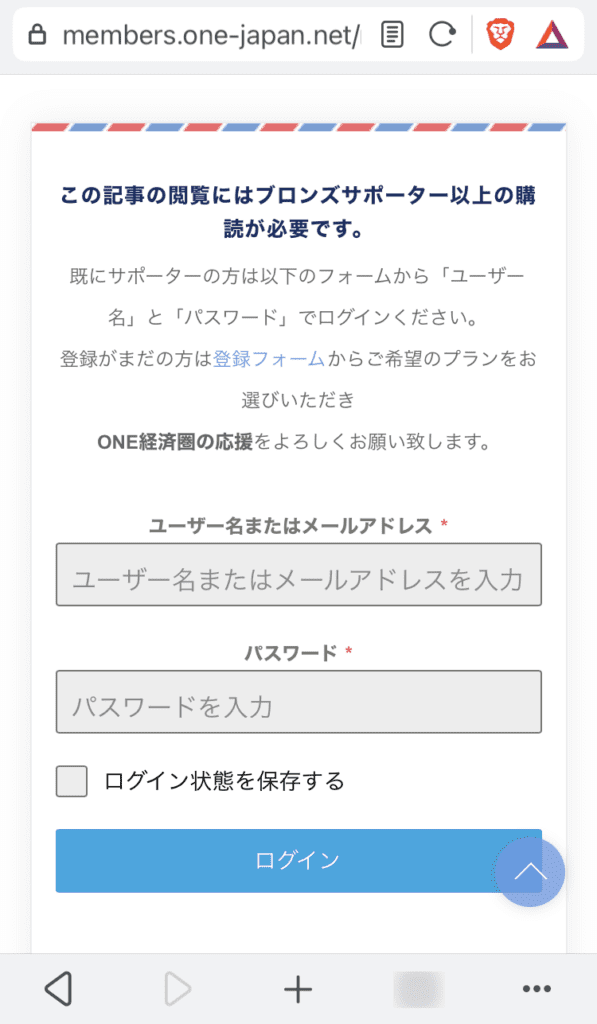
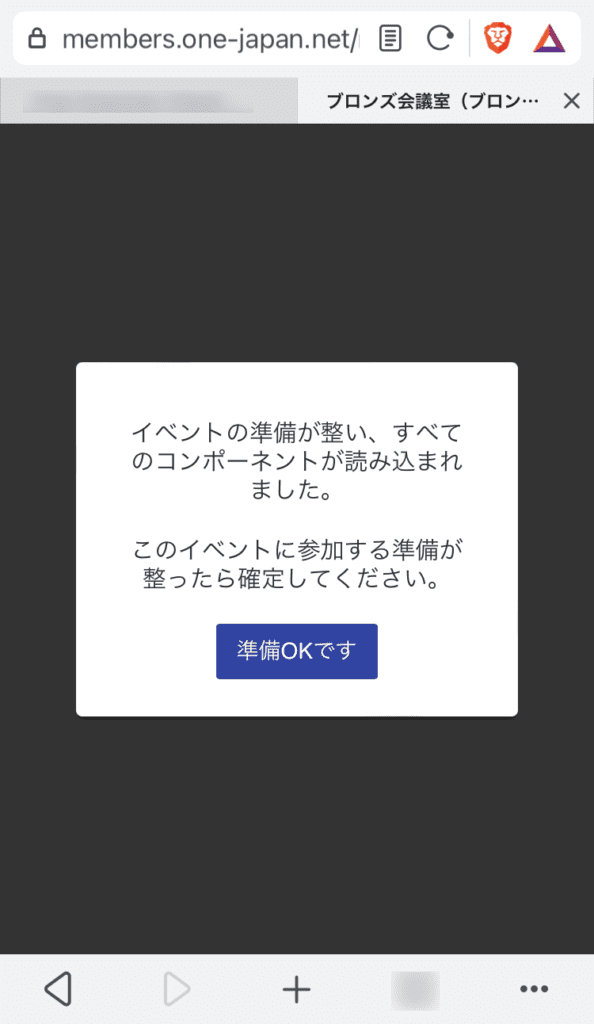
When the login is complete, the following screen will be displayed.
3. Click I'm ready.
4. If the web conference has not yet started, the following screen will be displayed.
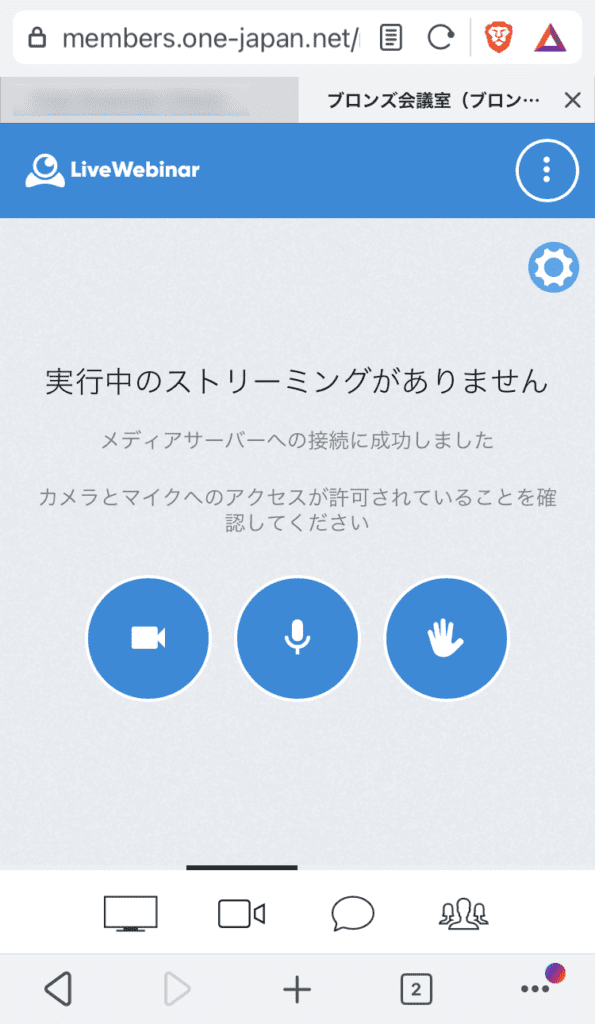
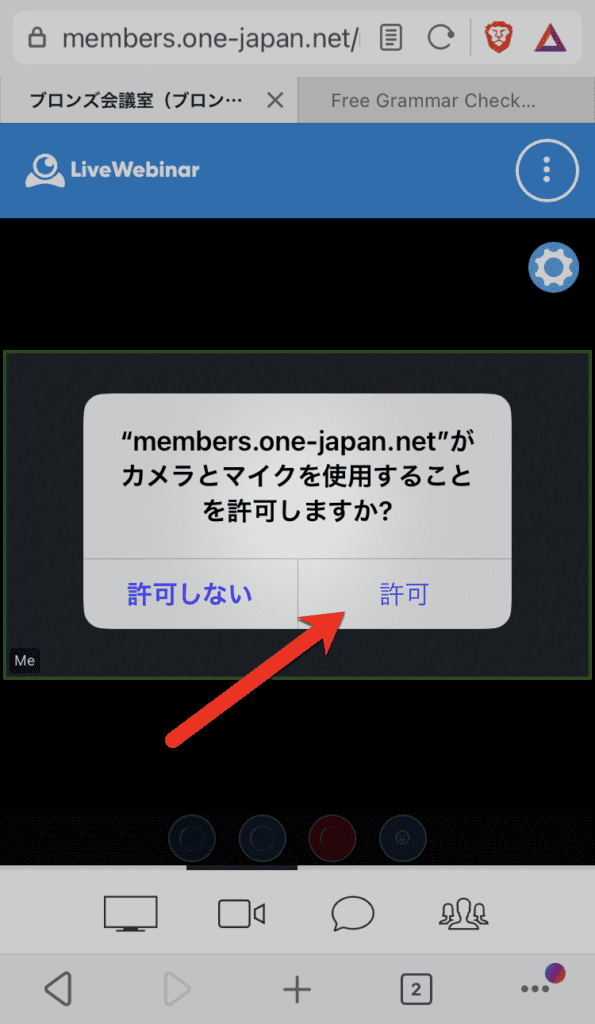
5. While waiting for the start of the web conference, configure the microphone and camera settings.
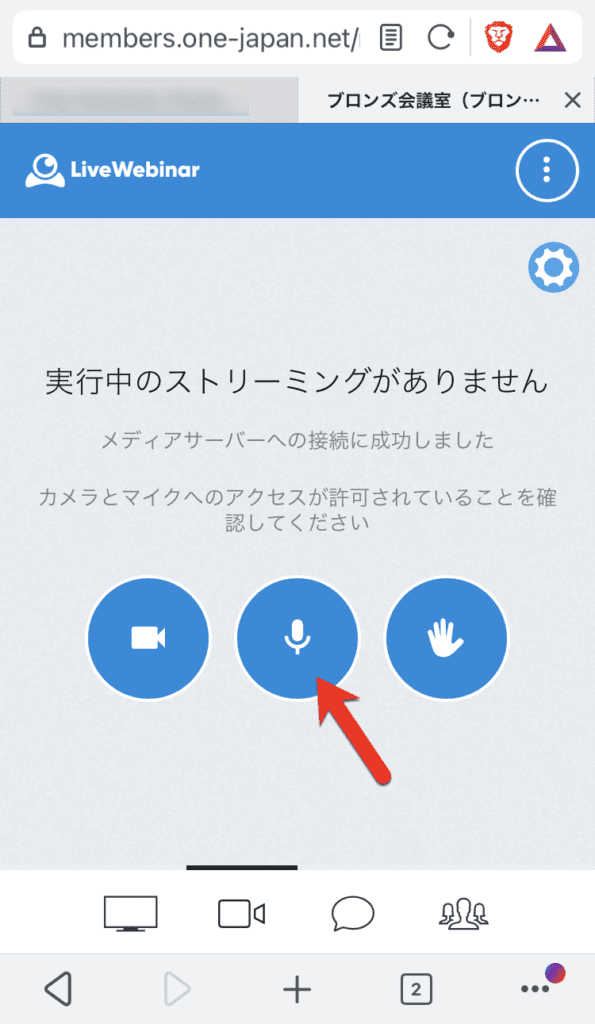
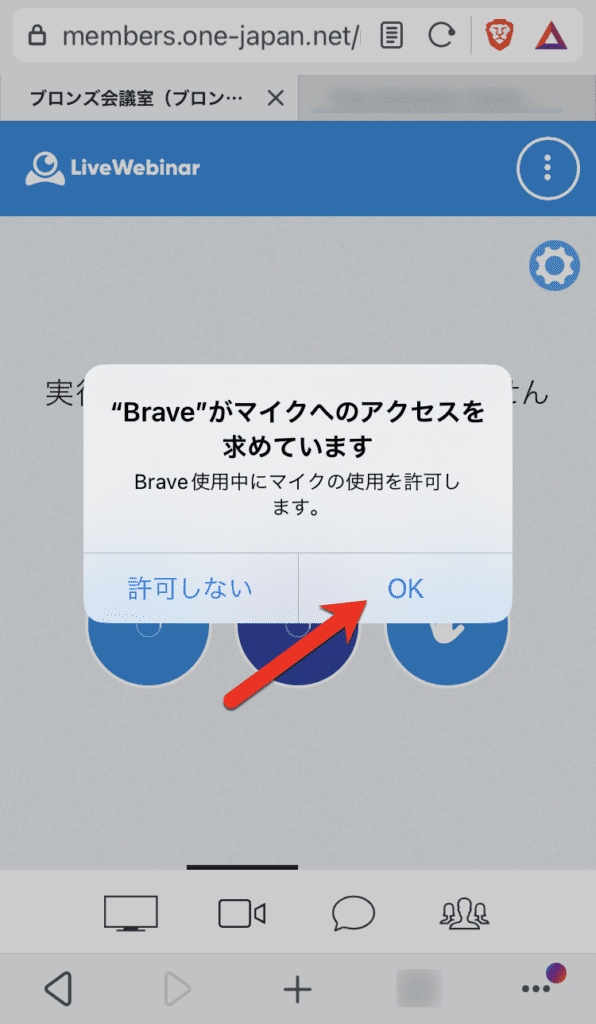
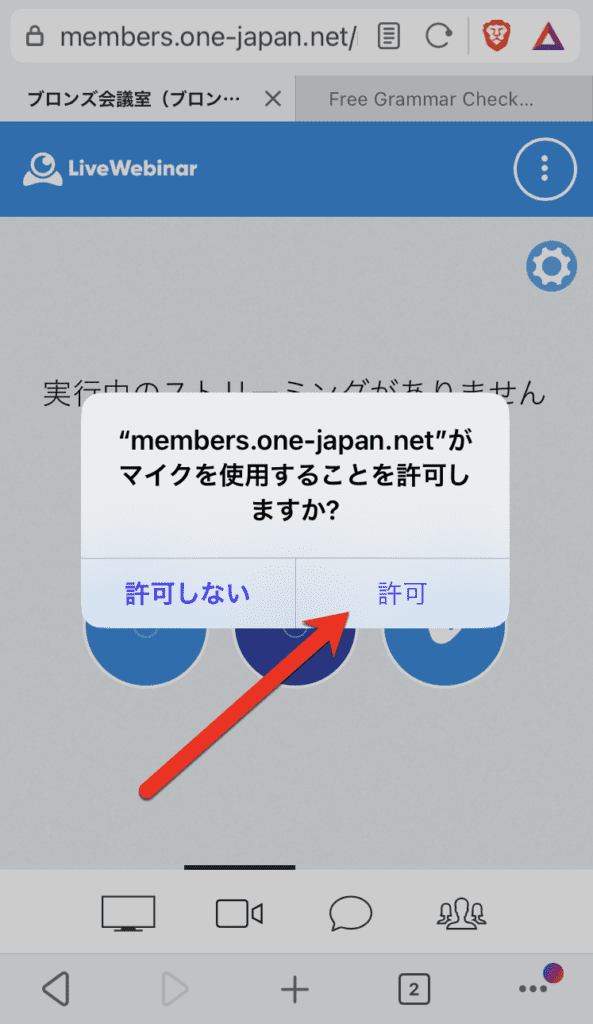
If you click on the microphone icon, you may need to allow microphone access twice, browser and homepage.
Both OK or permission Please note that you will not be able to participate with the microphone if you do not click .
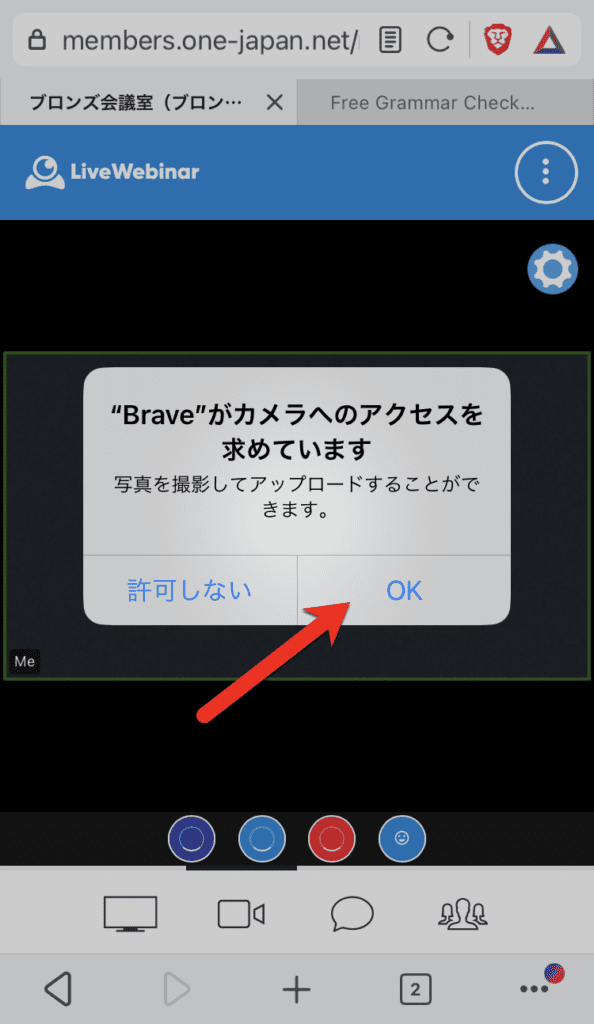
As with the camera, you may need to allow the camera to access twice, once in the browser and once on the homepage.
Both OK or permission Please note that if you do not click on the camera, you will not be able to participate with the camera.
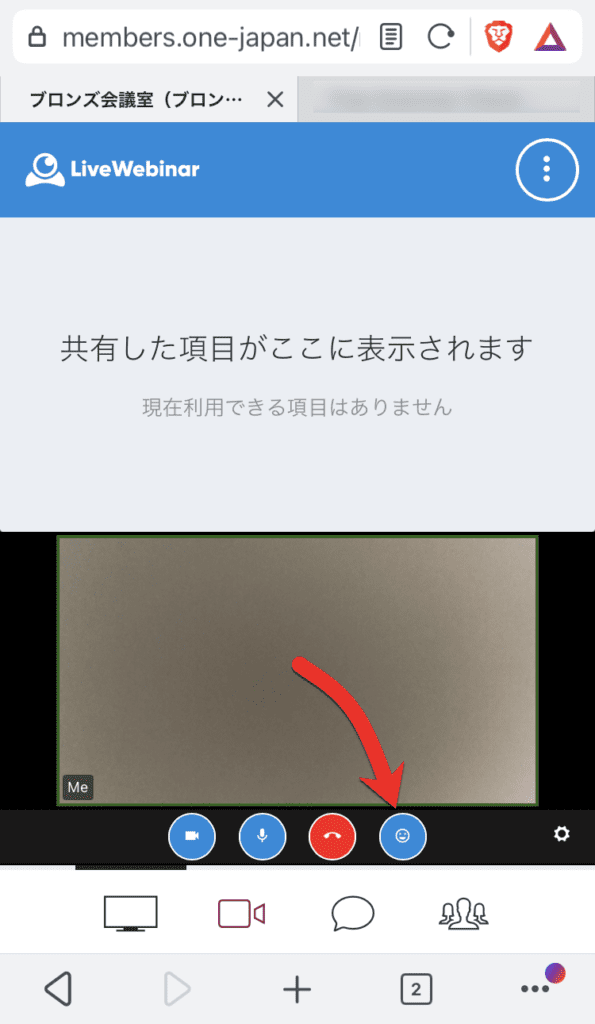
6. Use during web conferences
FOCUS ON THE WEBCAM
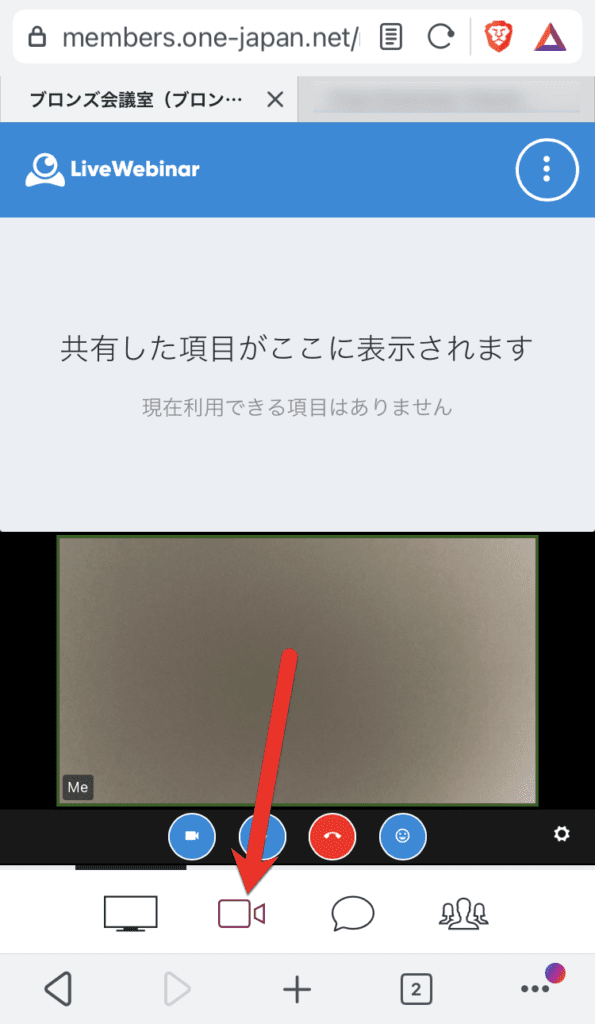
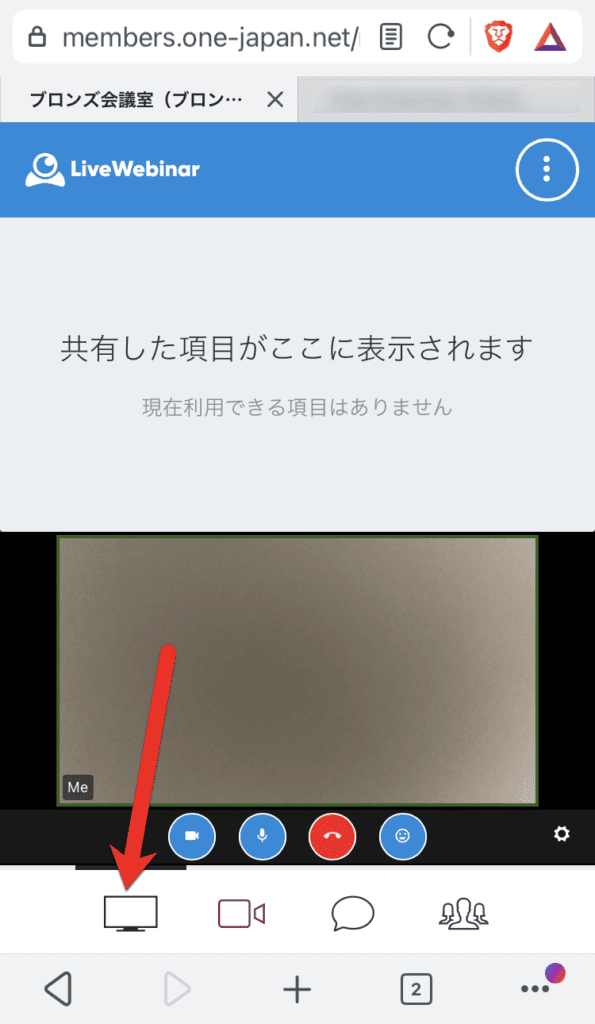
Check shared materials and instructor screens
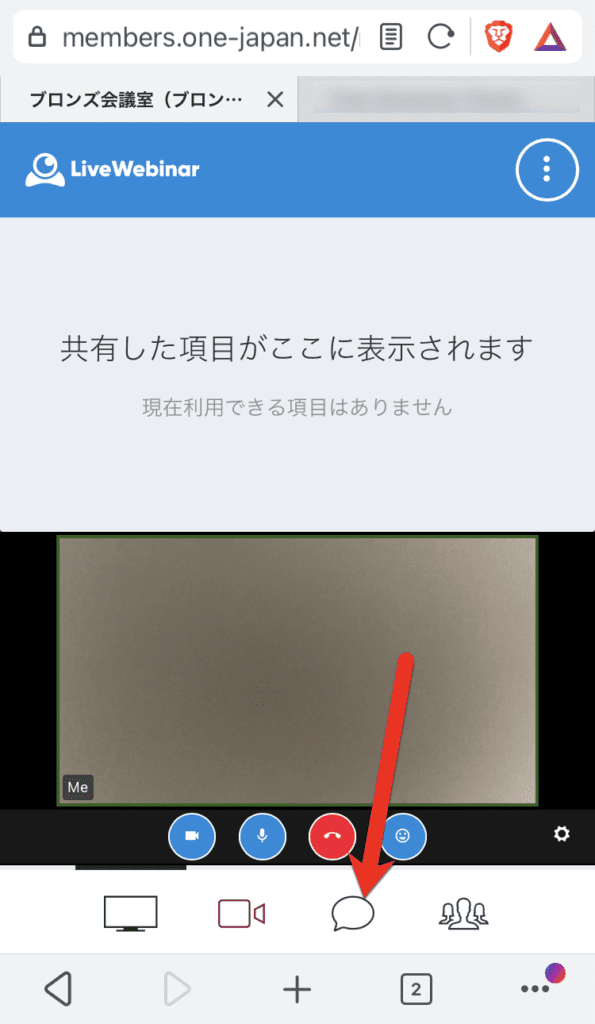
Send a chat message or read a chat
See the list of participants
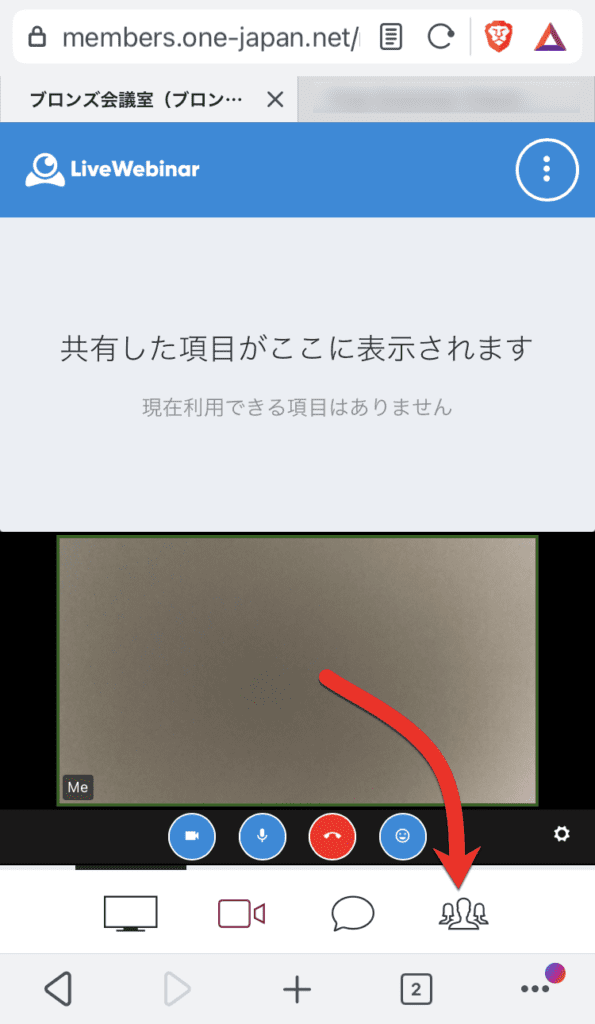
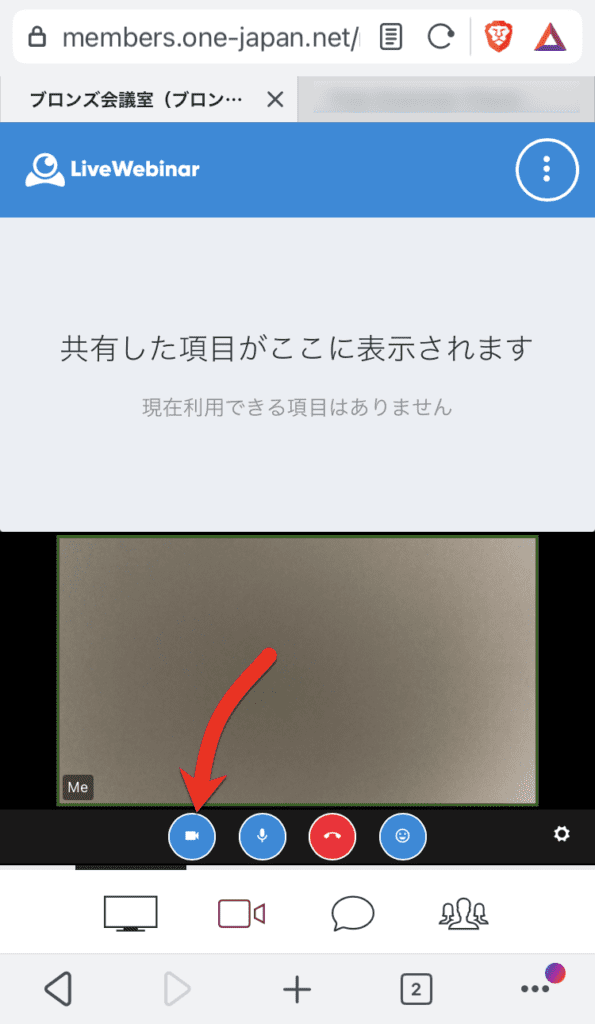
Start/stop your camera
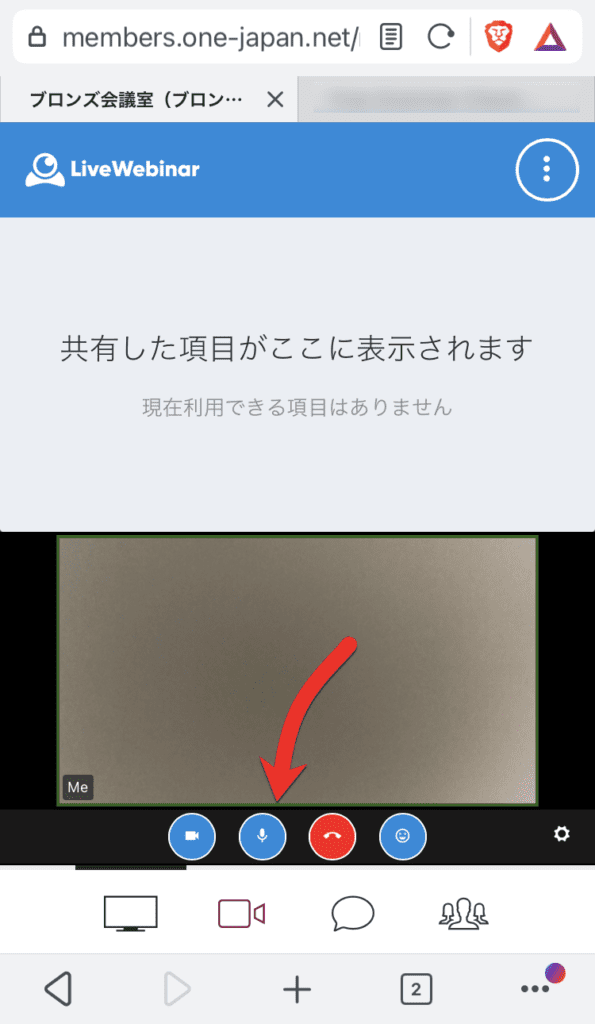
Start/stop your own microphone
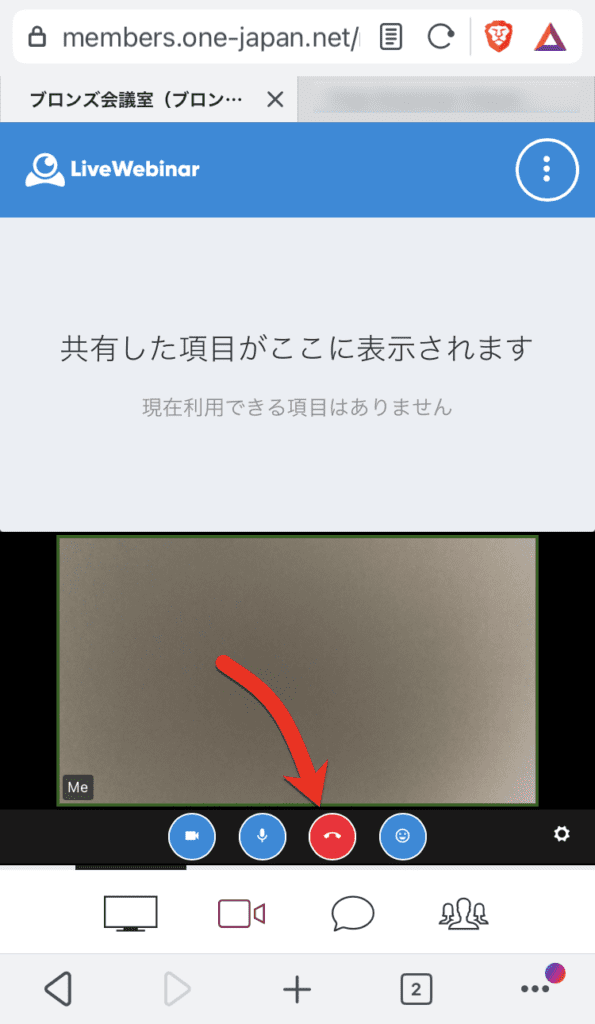
Leaving a web conference
Express your emotions with emojis
This is how to participate in the web conference. If you have any questions, please feel free to contact us.



































 Copyright © 2020 – 2026 All Rights Reserved

 Copyright © 2026 All Rights Reserved
Need help? Please contact our help desk.